
 See Our Latest Article on HelloNation

A spine-friendly workspace does not require expensive furniture or a perfectly rigid posture. It mainly requires arranging the chair, screen, keyboard, lighting, and work habits so the body can remain supported while changing position easily.
For residents working from home, studying, managing household tasks, or spending long hours at a computer, small adjustments can reduce unnecessary strain on the neck, shoulders, wrists, hips, and lower back. This can be especially useful during colder months, when more daily activity may take place indoors.
What makes a workspace easier on the spine?
A spine-friendly workspace keeps the head balanced over the torso, the shoulders relaxed, the elbows near the body, and the feet supported. The goal is not to hold one “perfect” posture all day. The goal is to avoid prolonged bending, twisting, reaching, or slouching.
Ergonomic guidance from the Occupational Safety and Health Administration emphasizes a neutral working position: the head and neck aligned with the torso, the lower back supported, wrists in line with the forearms, and feet flat or supported. ([osha.gov](https://www.osha.gov/etools/computer-workstations?utm_source=openai))
A useful starting point is to sit at the center of the workstation rather than turning the body toward a monitor, notebook, or second screen.
How should a desk chair be adjusted?
Adjust the chair so the feet rest flat on the floor and the knees are approximately level with, or slightly lower than, the hips. The backrest should support the natural curve of the lower back without forcing the body into an exaggerated arch.
The chair should also allow:
- The hips to remain toward the back of the seat
- The shoulders to stay relaxed rather than lifted
- The elbows to remain close to the sides
- Enough room behind the knees to avoid pressure
- Easy movement between sitting upright and sitting slightly reclined
Armrests can help if they allow the shoulders to relax, but they should not push the elbows outward or prevent the chair from moving close enough to the desk.
If the chair is too high for the feet to reach the floor, a stable footrest can help. A small, solid stool may work in a home setting, provided it does not slide or create a tripping hazard. Mayo Clinic similarly recommends supporting the feet when chair height and desk height cannot both be adjusted comfortably. ([mayoclinic.org](https://www.mayoclinic.org/healthy-lifestyle/adult-health/in-depth/office-ergonomics/art-20046169?utm_source=openai))
Where should the monitor go?
Place the main monitor directly in front of the body, not off to one side. The top of the screen should be at or slightly below eye level, and the screen should generally sit about an arm’s length away.
This arrangement helps limit repeated neck bending and turning. If the screen is too low, the head tends to drift forward. If it is too far away, a person may lean toward it to read. If the monitor is positioned beside the keyboard rather than behind it, the torso and neck may remain rotated for hours.
People who use bifocals or progressive lenses may need the screen slightly lower to avoid repeatedly tipping the head backward while reading. Screen height should be adjusted based on comfortable vision, not on a one-size-fits-all rule.
What should change for laptop users?
A laptop combines the screen and keyboard in a way that often forces a compromise. If the screen is high enough for the neck, the keyboard may be too high for the hands. If the keyboard is comfortable, the screen may be too low.
For extended laptop use, place the laptop on a stand or stable raised surface and use a separate keyboard and mouse. This allows the screen and input devices to be positioned independently, more like a desktop setup. OSHA includes laptop workstations within the same basic ergonomic principles used for desktop computers. ([osha.gov](https://www.osha.gov/etools/computer-workstations/checklists/evaluation?utm_source=openai))
Avoid raising a laptop on an unstable stack of soft materials, where it could tip or block ventilation. The setup should remain secure and leave enough room for the legs.
How should the keyboard and mouse be positioned?
Keep the keyboard close enough that the elbows stay near the sides and the shoulders remain relaxed. The hands should be roughly level with, or slightly below, the elbows, with the wrists relatively straight.
The mouse should be placed beside the keyboard rather than far away. Reaching repeatedly to one side can contribute to shoulder tension, particularly when the arm is extended for long periods.
Useful adjustments include:
- Reduce excessive mouse sensitivity so large arm movements are not necessary
- Keep frequently used items within easy reach
- Avoid resting the wrists against a sharp desk edge
- Use a light touch rather than gripping the mouse tightly
- Alternate between typing, reading, phone use, and other tasks when possible
A wrist rest may provide comfort during pauses, but it should not force the wrists into a bent position while typing.
Does posture need to be perfectly upright?
No. A rigid, military-style posture can create its own tension. A better approach is to maintain a balanced position and change it regularly.
A comfortable working position often includes a tall but relaxed torso, a gently supported lower back, relaxed shoulders, and the head balanced rather than pushed forward. Brief periods of leaning back or shifting position are not harmful by themselves. Staying in one position for too long is usually the larger concern.
The body often gives early warning signs, such as:
- A stiff neck after reading or screen use
- Aching between the shoulder blades
- Tingling or fatigue in the hands
- Tight hip flexors after sitting
- Low-back discomfort that improves after walking
- Headaches associated with prolonged neck tension
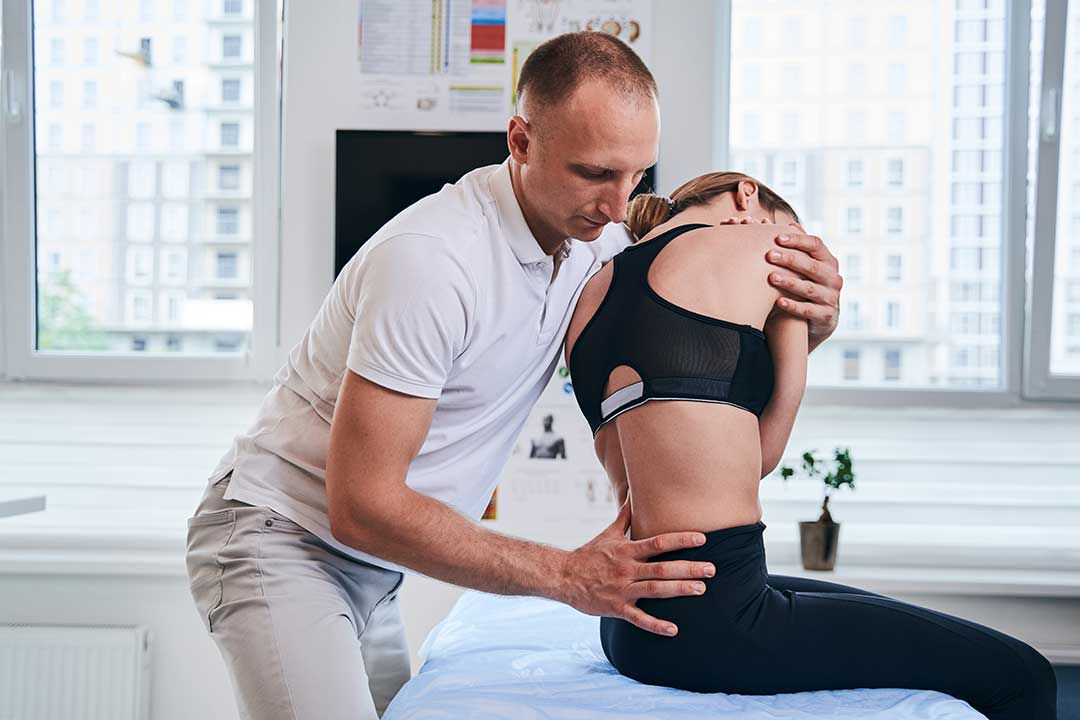
These symptoms do not prove that the workstation is the only cause, but they can indicate that the arrangement or work routine deserves review.
How often should someone move?
Even a well-arranged workstation cannot replace movement. Short recovery pauses can be more practical than waiting for one long break at the end of the day.
Stand briefly, walk to another room, refill water, stretch gently, or change tasks before discomfort becomes intense. OSHA recommends organizing computer work so that keyboard tasks can be varied with other activities or brief recovery pauses. ([osha.gov](https://www.osha.gov/etools/computer-workstations/checklists/evaluation?utm_source=openai))
A simple home routine might include:
- Standing during phone calls
- Walking for a minute or two every half hour
- Changing from sitting to standing for short periods
- Looking away from the screen regularly
- Performing gentle shoulder rolls or ankle movements
Movement should feel easy rather than forceful. Stretching aggressively into pain is not necessary.
What local conditions can affect a home workspace?
In Cortland, seasonal cold can make indoor workspaces less comfortable and may encourage long periods of sitting without movement. Drafty rooms, heavy layers, poor lighting, or working near a window can also influence posture. For example, a person may hunch the shoulders against cold air or lean toward a screen to overcome glare.
A few practical checks can help:
- Keep the workspace warm enough to avoid constant shoulder shrugging
- Position the screen away from direct window glare
- Use a lamp so reading materials do not require leaning forward
- Keep winter footwear or bulky clothing from restricting foot placement
- Leave clear space under the desk for the legs and feet
Furniture does not need to be expensive to be useful. A stable chair, a properly placed screen, and a clear floor area may provide more benefit than decorative equipment that cannot be adjusted.
When is discomfort a reason to seek medical guidance?
Workspace changes are reasonable for mild, occasional stiffness. Medical guidance is more appropriate when pain is persistent, worsening, or accompanied by symptoms such as numbness, significant weakness, loss of coordination, unexplained fever, or changes in bladder or bowel control.
Sudden severe pain after an injury also deserves prompt evaluation. A spine-friendly setup can reduce mechanical strain, but it cannot diagnose or treat every cause of back, neck, or limb symptoms.
The most useful workstation is one that supports comfortable movement, keeps essential equipment within easy reach, and can be adjusted as the person’s tasks, body, and household conditions change.
